Environment Clean-up
Environment Cleanup helps administrators analyze Qlik environments and identify applications that may no longer be actively used, consume unnecessary resources, or contribute to environment clutter. By evaluating applications against configurable analysis rules, Environment Cleanup provides insights that help optimize resource utilization and improve overall governance.
After an analysis is completed, administrators can review the generated results, inspect application details, and take appropriate actions such as quarantining, deleting, or restoring applications. The feature also maintains a history of cleanup operations, providing visibility into executed actions and supporting audit requirements.
Environment Cleanup Workflow
The Environment Cleanup workflow consists of the following stages:
- Configure the analysis rules.
- Run an environment analysis.
- Review the generated analysis results.mk
- Inspect application details.
- Filter and search the identified applications.
- Delete or quarantine applications when appropriate.
- Restore deleted or quarantined applications if required.
- Review the execution history and logs.
Configure Analysis
Before running an analysis, configure the rules that will be used to evaluate applications within the selected environment.
Select Configure Analysis to open the configuration page.
Administrators can configure:
- Default analysis configuration
- Server-specific configuration overrides
- Analysis categories
- Individual analysis rules
After modifying the desired settings, select Save Configuration to apply the changes.
Analysis Categories
Environment Cleanup organizes its analysis into multiple categories, each designed to identify different opportunities for optimization and governance.
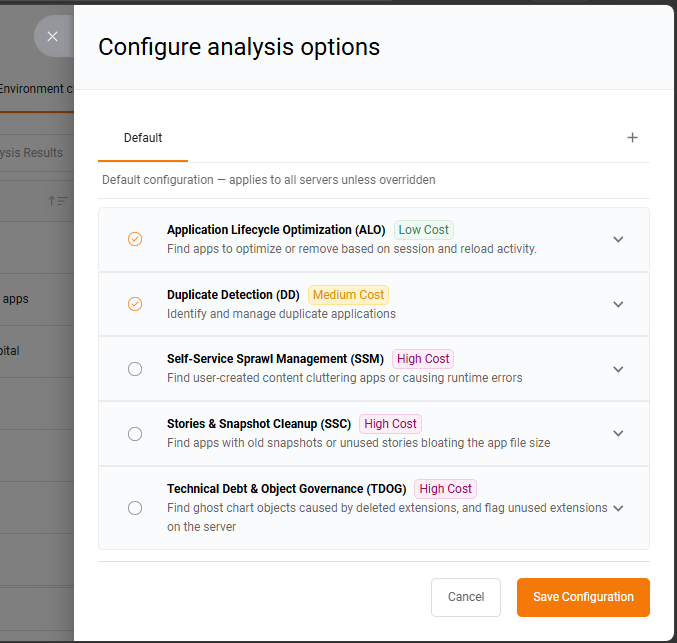
Application Lifecycle Optimization (ALO)
Application Lifecycle Optimization identifies applications that may no longer provide business value or consume unnecessary resources.
The available analysis rules include:
- Zero-Touch Rule (ZT) – Identifies applications that have not been accessed for a specified period.
- Wasteful Compute (WC) – Detects applications that consume system resources without corresponding user activity.
- Static Reference (SR) – Identifies applications whose content has remained unchanged for an extended period.
- Orphaned Personal Apps (OPA) – Detects personal applications that are no longer actively maintained.
- Dead Weight (DW) – Identifies applications that appear unused and may be suitable for cleanup.
- High RAM Usage (HRU) – Detects applications with significant memory consumption.
Duplicate Detection (DD)
Duplicate Detection identifies applications that may represent duplicate copies within the environment.
Available rules include:
- Similarity Analysis (SA) – Detects applications with highly similar content.
- Metadata Hashing (MH) – Compares application metadata to identify potential duplicates.
Self-Service Sprawl Management (SSM)
Self-Service Sprawl Management identifies user-created content that may contribute to unnecessary application complexity or governance issues.
Available rules include:
- Community Sheet Trap (CST)
- Private Sheet Overload (PSO)
- Broken Bookmarks (BB)
- Stale Community Bookmarks (SB)
- Orphaned Bookmarks (OB)
Stories & Snapshot Cleanup (SSC)
Stories & Snapshot Cleanup identifies outdated stories and snapshots that may unnecessarily increase application size.
Available rules include:
- Obsolete Snapshots (OS)
- Stale Stories (SS)
Technical Debt & Object Governance (TDOG)
Technical Debt & Object Governance identifies obsolete or unsupported objects within applications.
Available rules include:
- Ghost Objects (GO)
- Unused Extensions (UE) (Coming Soon)
Run an Environment Analysis
After configuring the analysis rules, return to the Environment Cleanup page.
Select the desired:
- Server
- Analysis
Start the analysis to evaluate the selected environment.
During execution, the analysis progress is displayed within the interface. The progress indicator shows the current completion percentage while the applications are being evaluated.
Once the analysis completes, the generated results become available for review.
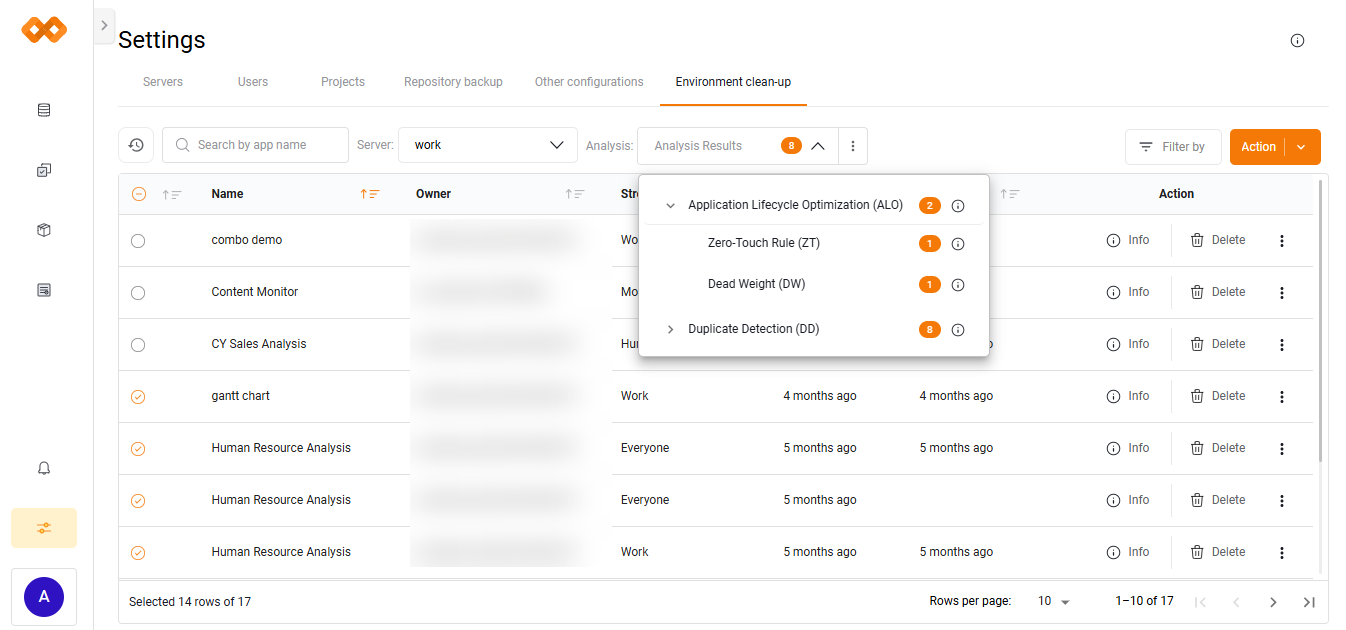
Review Analysis Results
After an analysis completes, the Environment Cleanup page displays the applications identified during the analysis.
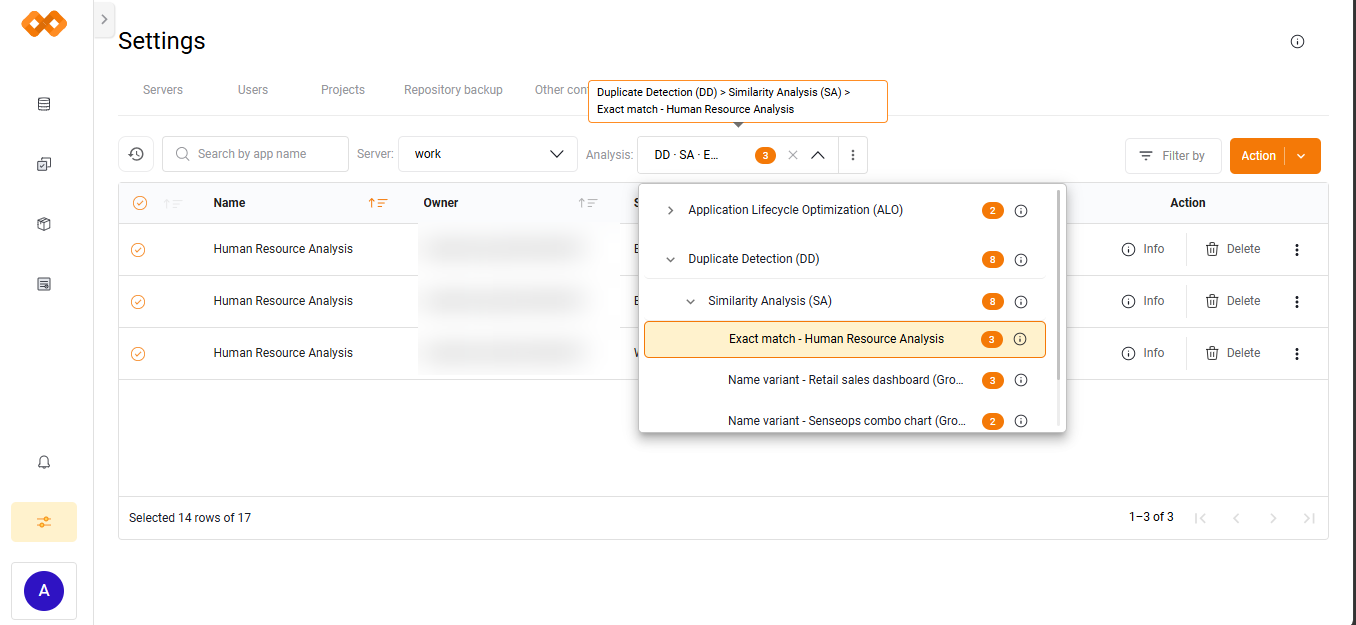
The results table includes information such as:
- Application Name
- Owner
- Stream
- Last Modified
- Last Reload
Administrators can search for specific applications using the search bar or narrow the displayed results using the available filters.
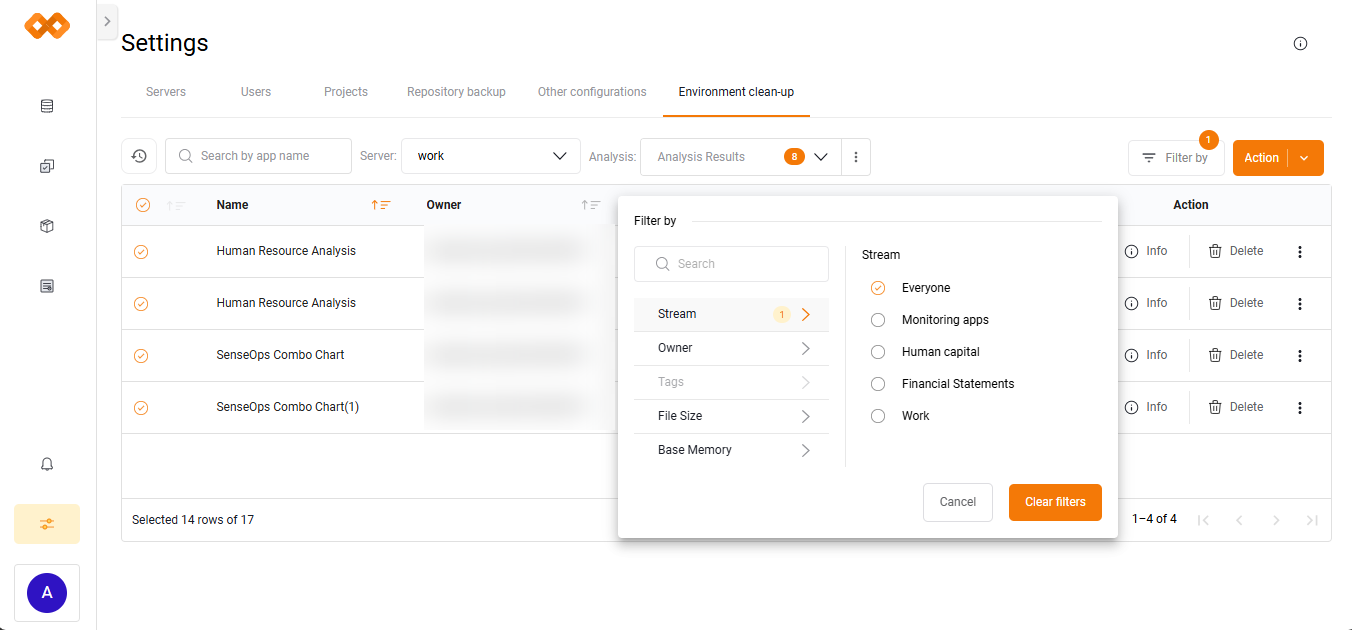
Available filters include:
- Stream
- Owner
- Tags
- File Size
- Base Memory
These filters help quickly locate applications that match specific criteria.
Application Information
Select the Info action for an application to view additional metadata.
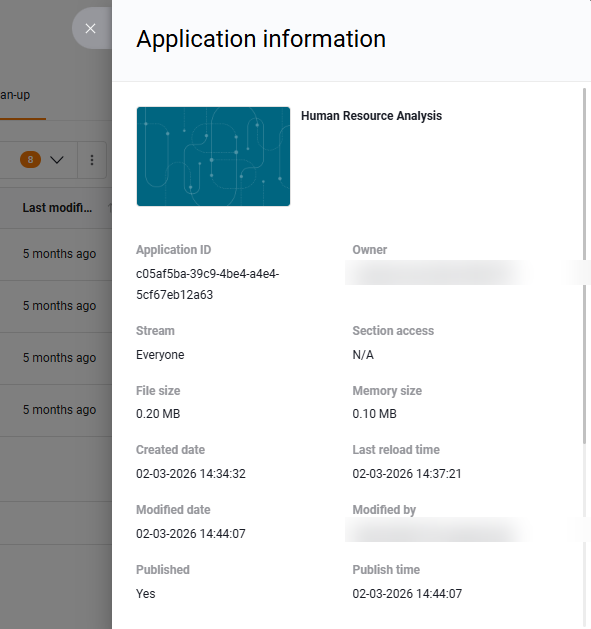
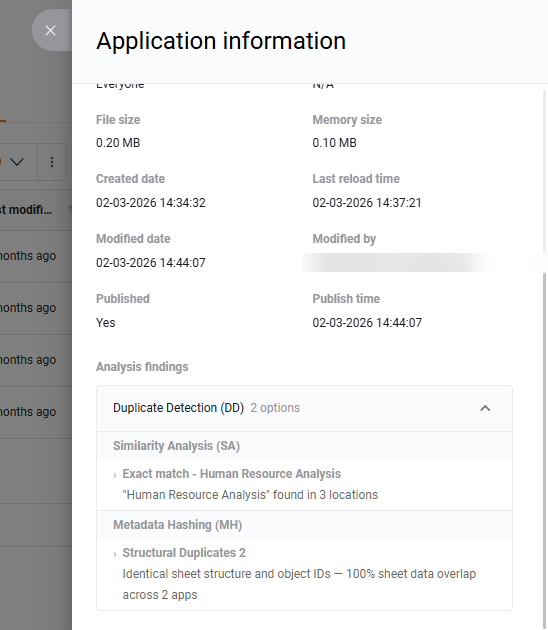
The information panel includes details such as:
- Description
- Owner
- Stream
- File Size
- Memory Size
- Created Date
- Modified Date
- Last Reload
- Published Information
- Application Identifiers
This information helps administrators evaluate an application before taking further action.
Manage Applications
Environment Cleanup provides multiple actions that can be performed directly from the analysis results.
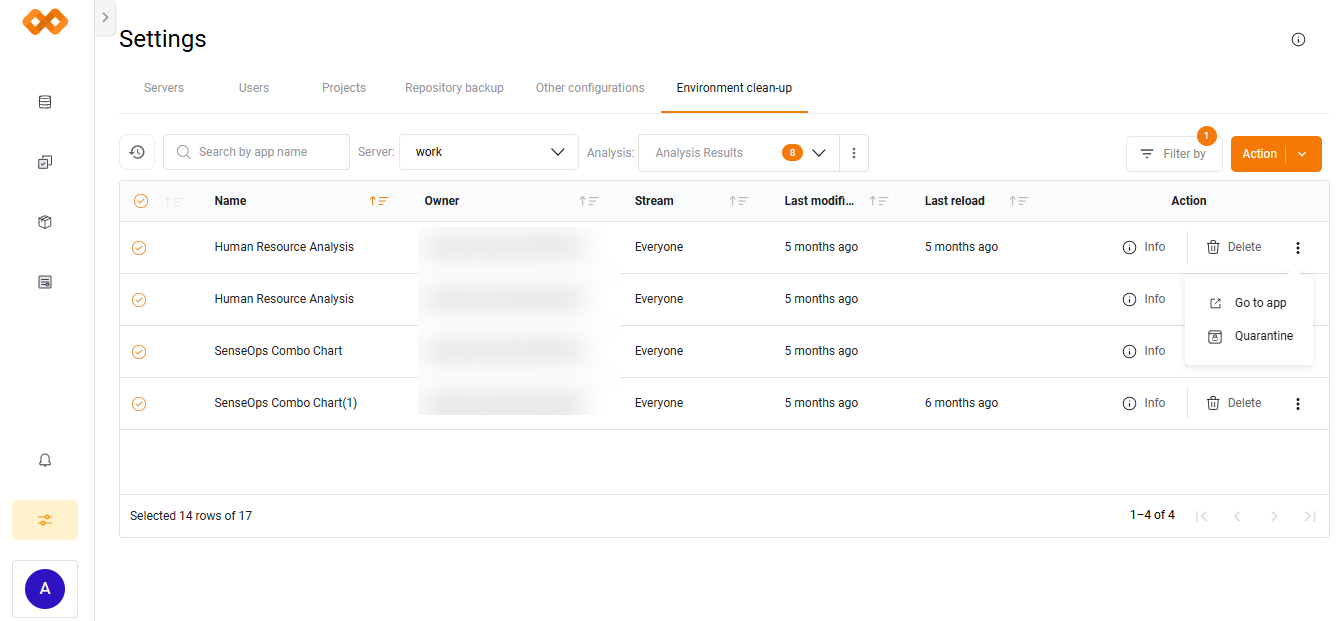
Available actions include:
- Go to App
- Delete
- Quarantine
- View Information
Delete Applications
Delete applications directly from the analysis results. A confirmation dialog is displayed before deletion, and deleted applications are moved to the Deleted Applications view for possible restoration.
Deleted Applications
Enable View Deleted to display deleted applications.
The Deleted Applications view allows administrators to:
- Review deleted applications
- View application information
- Restore deleted applications
Deleted applications can also be filtered based on the recorded deletion source.
Restore Deleted Applications
Select Restore to return a deleted application to the environment. A confirmation dialog is displayed before the application is restored.
Quarantine Applications
Instead of deleting an application, administrators can move it to the quarantine stream.
Quarantined applications remain isolated and can be restored to their original stream or permanently deleted during the configured retention period. After the retention period expires, they are automatically purged based on the configured schedule.
Quarantined Applications
Enable View Quarantined to display applications currently placed in quarantine.
The Quarantined Applications view displays additional information, including the scheduled auto-purge date.
Available actions include:
- Restore
- Delete
- View Information
Restore Quarantined Applications
Applications can be restored from quarantine at any time before permanent removal.
Selecting Restore returns the application to its original stream after confirmation.
Environment Cleanup History
Environment Cleanup records all cleanup operations performed within the environment.
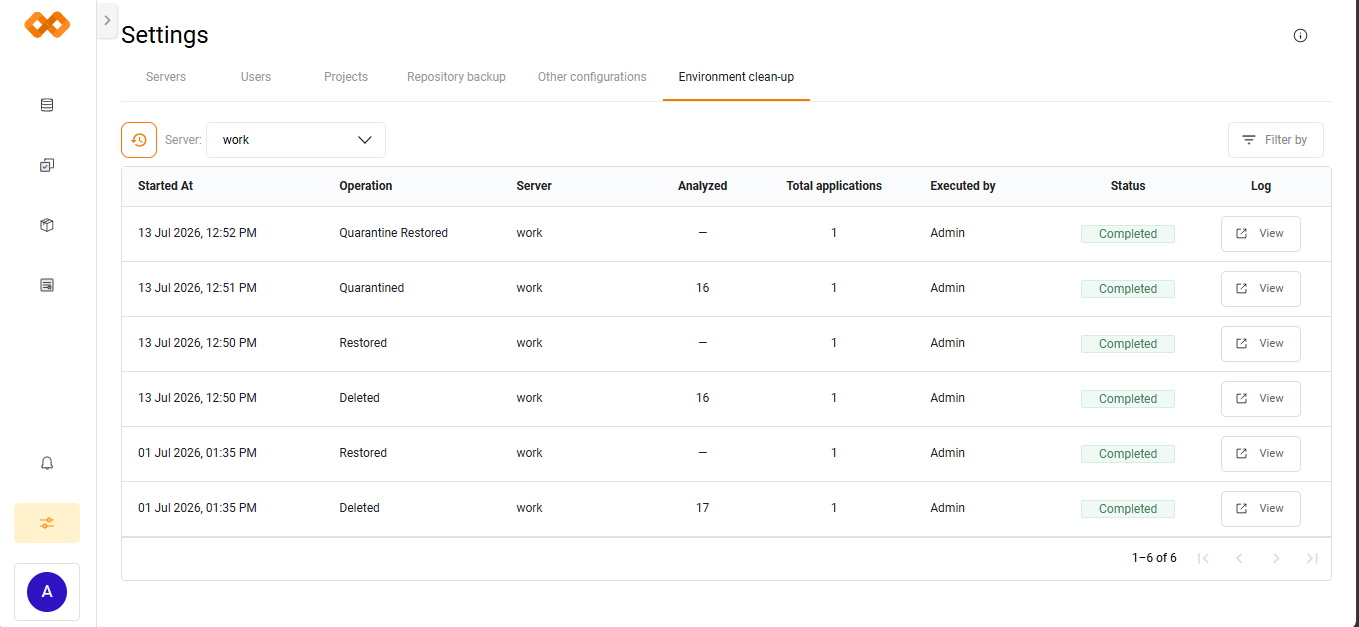
The History page displays details such as:
- Started At
- Operation
- Server
- Applications Analyzed
- Total Applications
- Executed By
- Status
- Execution Log
History entries can also be grouped by stream or user for improved traceability and auditing.
Execution Log
Each history entry includes an execution log containing:
- Operation status
- Duration
- Start time
- Completion time
- Items restored
- Execution details
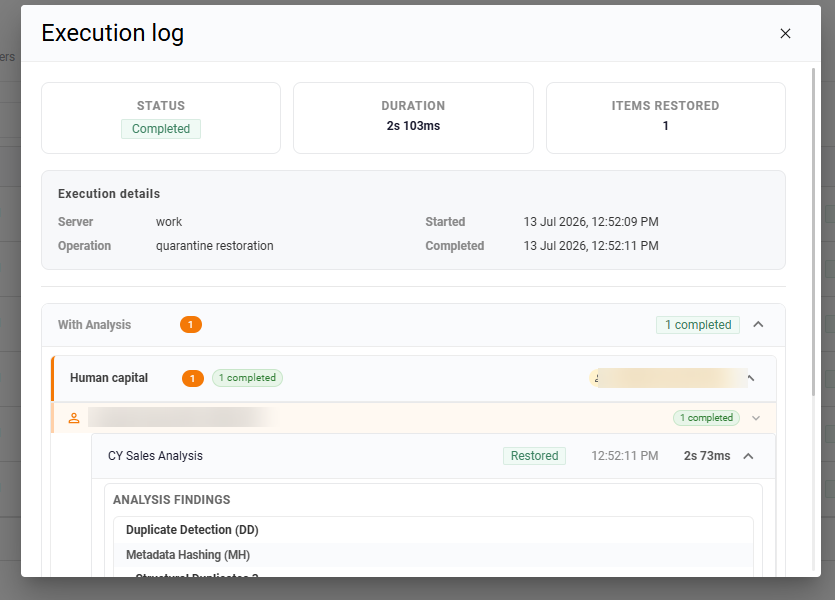
These logs help administrators review completed operations and troubleshoot issues when necessary.